A digital object is a file (scan, photograph, PDF, sound recording…) associated with a unit of description. Memory Atlas never copies or modifies your files: they stay where they are in the Finder, and the repository keeps a link to each one, along with a few metadata read from its header (size, dimensions, color space, modification date). The contents of the files are not read.
The link follows the file if it is renamed or moved on the same disk. If it is deleted or copied elsewhere, Memory Atlas reports it as not found and helps you locate it.
Associating files with a unit
There are three ways to do it:
- drag files from the Finder onto a row of the tree;
- drag them onto the Digital objects card of the description;
- click Associate Files… in that card and choose them.
On an item, the files are associated directly. When you drop files onto a unit at the File level, or drop a Finder folder, Memory Atlas first asks what you want to do:
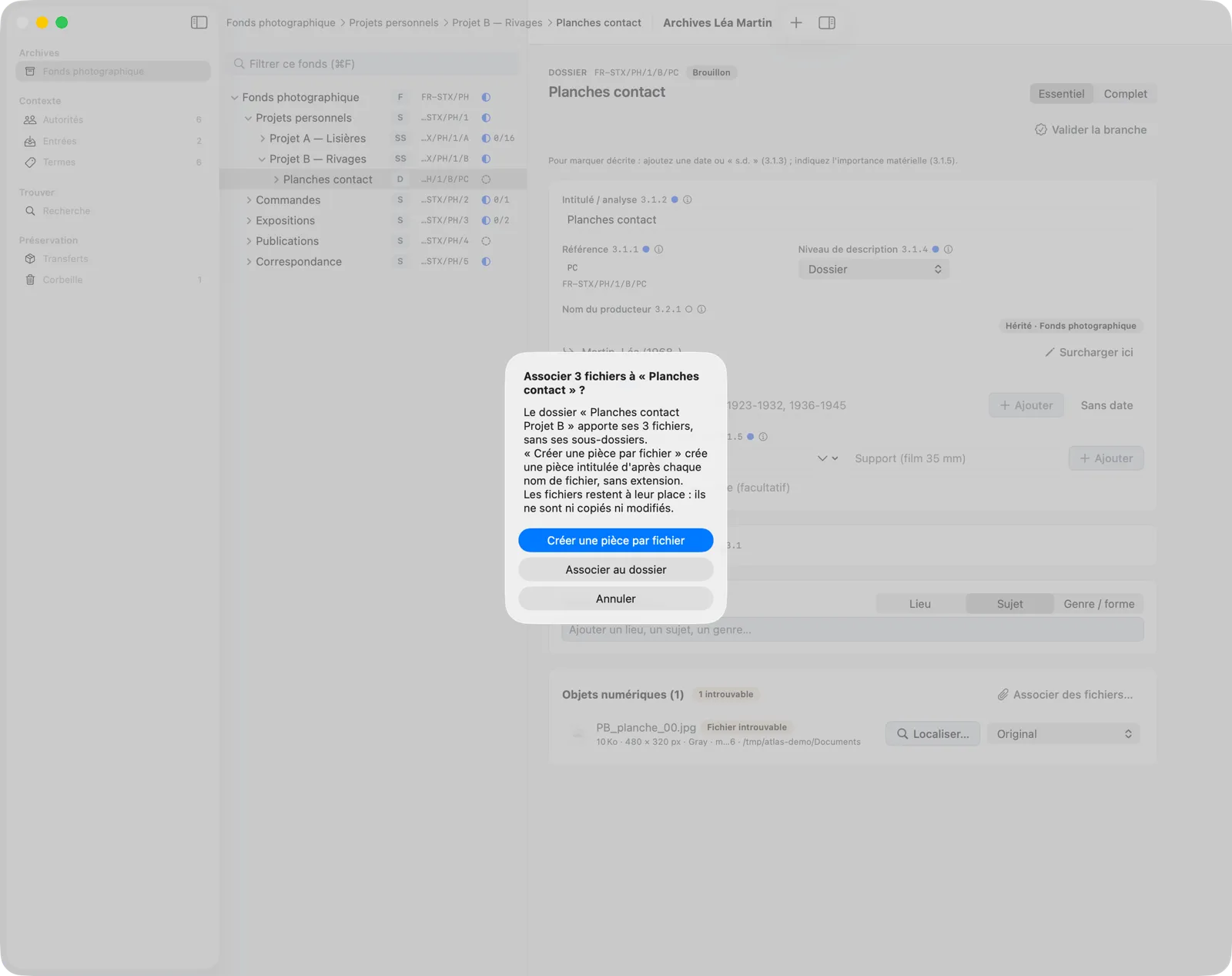
- Create an Item per File creates one item per file under the file-level unit, titled after the file name without its extension, and associates its file with it;
- Associate with the File associates all the files with the file-level unit itself;
- a Finder folder brings the files it contains directly, without its subfolders.
Preferably associate files with files or items: anywhere else (series, fonds), preparing the transfer shows a warning (check P-09).
This is how Léa created the twelve items PA_0001 to PA_0012 of the “Scans” file: she dropped the “Scans Projet A” folder from the Finder onto “Scans” and chose Create an Item per File. Like any operation, you can undo it with ⌘Z.
The Digital objects card
Select an item: its Digital objects card, at the bottom of the description, lists its files.
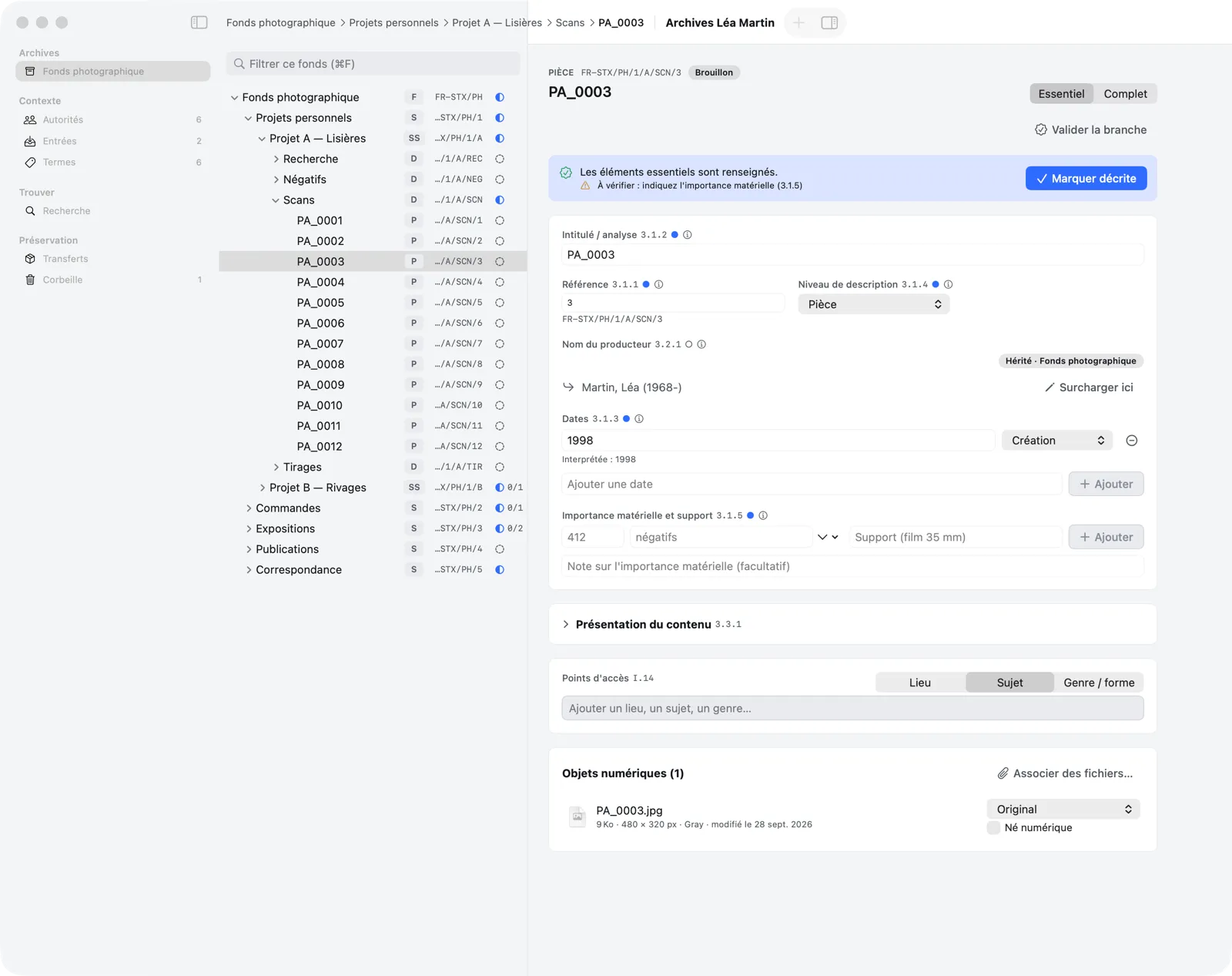
For each file, you see its name, its metadata and its Role: Original, Access copy, Documentation or Other. Choose the role from the row’s menu: the transfer package passes it on to Obscura Flow.
Check Born digital, below the role, for a file created in digital form (a digital photograph, a text typed on a computer), rather than produced by digitizing a document. The box is unchecked by default, because a scan is the most common case, even when it is the original. It only affects the EAD3 export: a born-digital file is described there as borndigital, the others as derived. Like the role, it can be undone with Edit › Undo.
Select a file, then:
- Space: Quick Look;
- ↑ ↓: move from one file to the next;
- ⌘⌫: Remove from Unit (the file is not deleted from the disk).
Right-clicking also offers Show in Finder, Locate… and Reread Metadata (after the file was changed outside the app).
In the tree, the Digital objects column counts each unit’s files.
A missing file
If a file has disappeared from its location (deleted, copied to another disk and then erased, disk unplugged), its row shows the File not found label, and the card title counts it (“1 not found”):
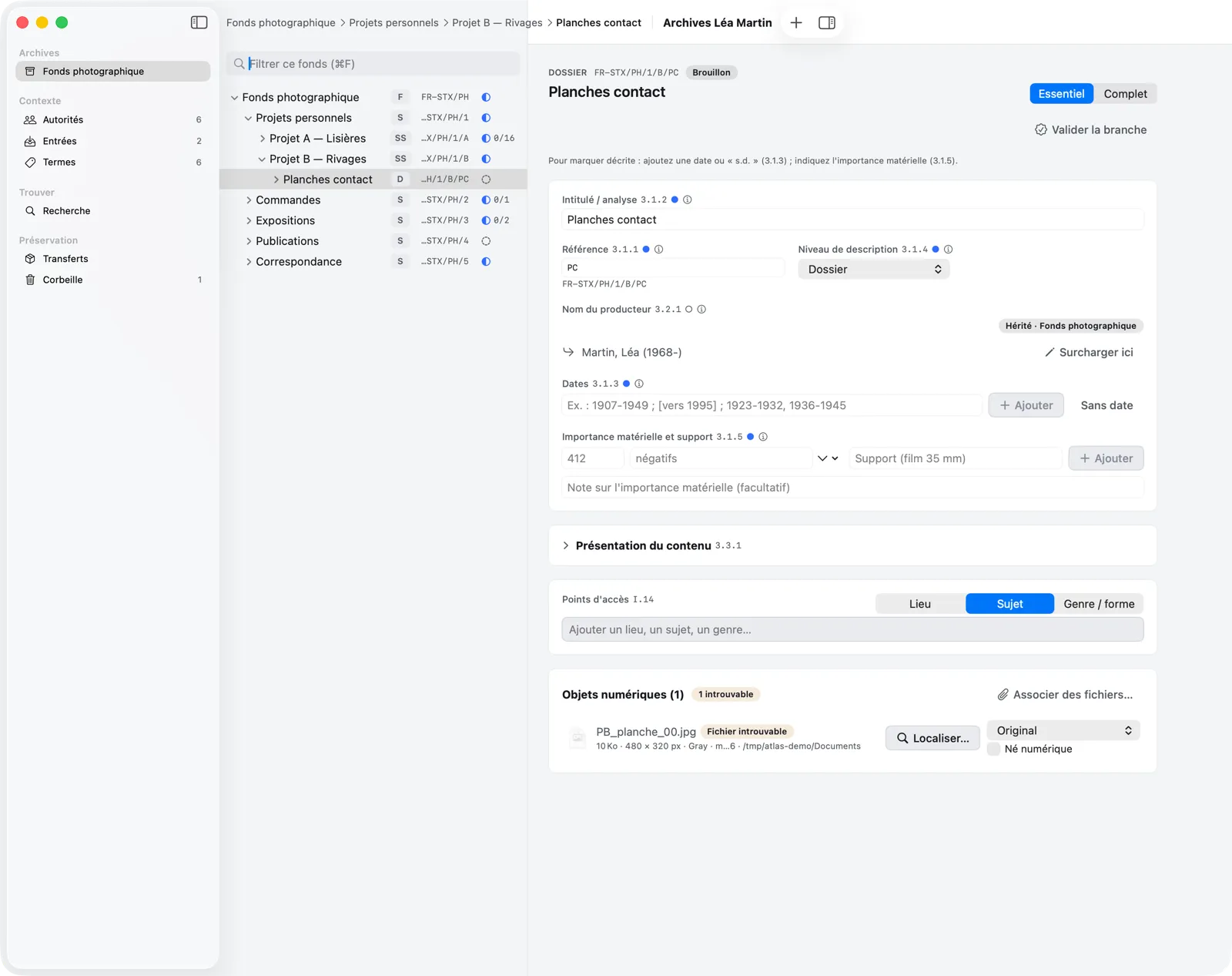
- Click Locate… and point to the file in its new location.
- If other missing files from the same former folder are also in the new one, Memory Atlas offers to Relocate the others in one go (or Later).
A file on a network volume
If the file is on a NAS or a server that isn’t mounted, Memory Atlas mounts that volume on its own only for files associated on this Mac. A repository you received, an imported export, a restored safety copy or files associated with an earlier version never connect to a server without you: they show as File not found.
The row then shows Mount Volume… next to Locate…. Memory Atlas shows you the name of the volume and of the server: only confirm if you recognize them. Once the file has been found, the volume will be mounted automatically the next times. You can also mount the volume in the Finder (Go › Connect to Server).
A missing file is a warning during validation (V-13), but it blocks the transfer (check P-06): locate it before preparing the package.